Chapter 6: Raspberry Pi Overview
The Raspberry Pi is a low-cost, low-power single-board computer built on a Broadcom SoC, widely used for embedded systems education and prototyping. This chapter takes a hands-on approach to the ARM architecture, the Linux OS, shell commands, the file system, and process management.
Raspberry Pi Technical Specs
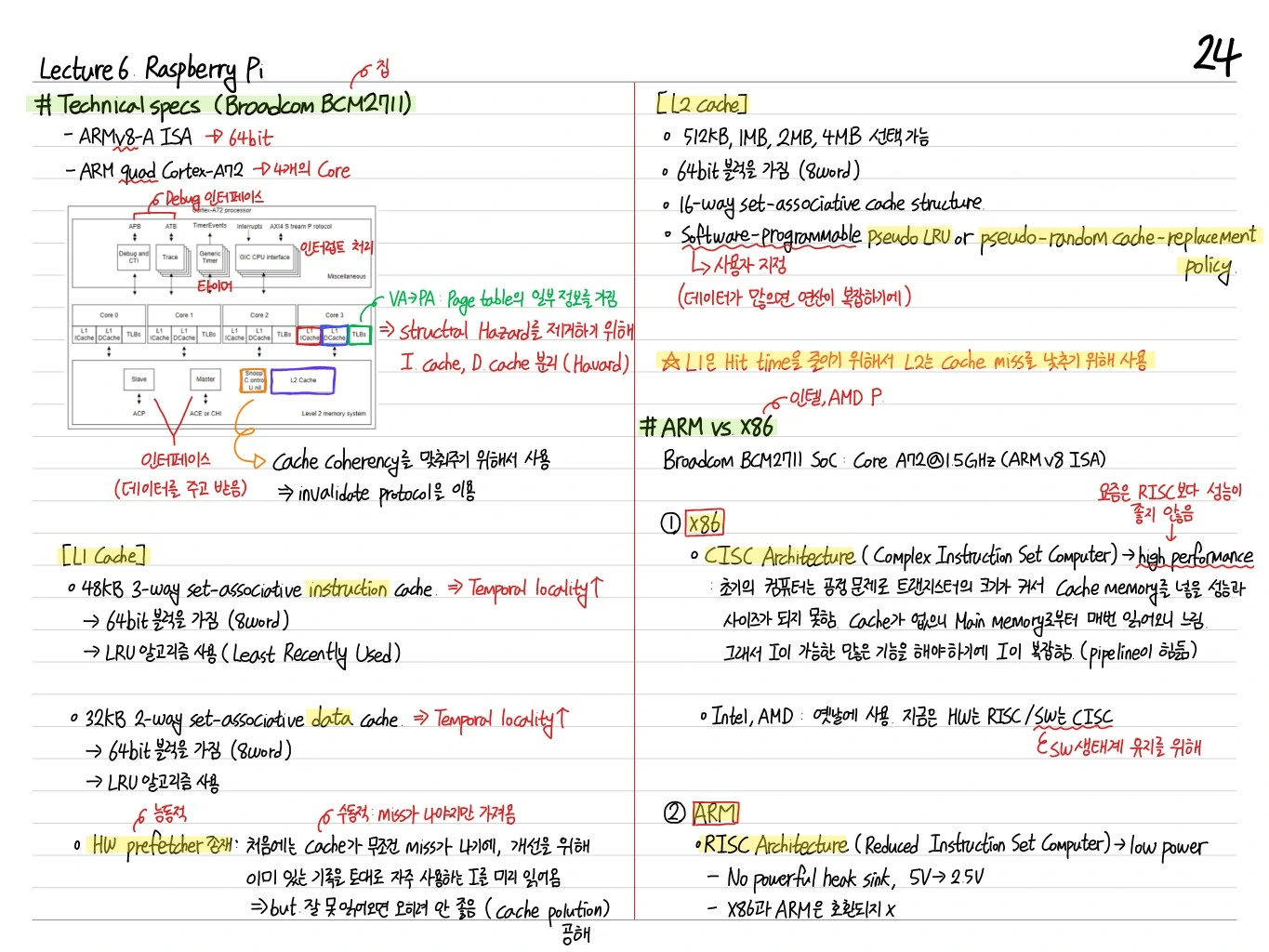
- APU: SoC based on the Broadcom BCM2711
- Maintains cache coherency (using a controller)
- Multi-core (4 cores): ARM Cortex-A72 family
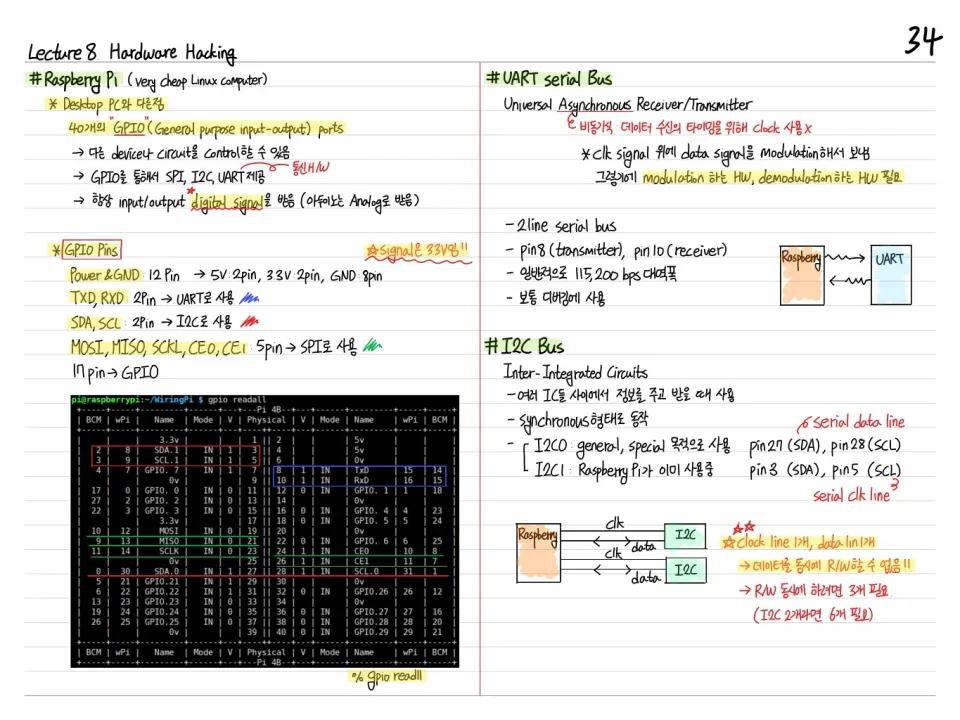
- Built-in peripherals such as GPU, GPIO, UART, SPI, and I2C
L1 Cache
- 2-way set-associative instruction cache (→ temporal locality?)
- 4-way set-associative data cache (→ temporal locality?)
- Line size is typically 64B
Per Partition Size
In the ARM big.LITTLE architecture, pipeline and cache settings differ by partition. Each core is designed with different speed and power depending on its pipeline depth.
L2 Cache
- Chosen from 512KB, 1MB, 2MB, or 4MB options
- N-way set-associative data & instruction cache
- Software programmable (shared cache and replacement policy can be tuned)
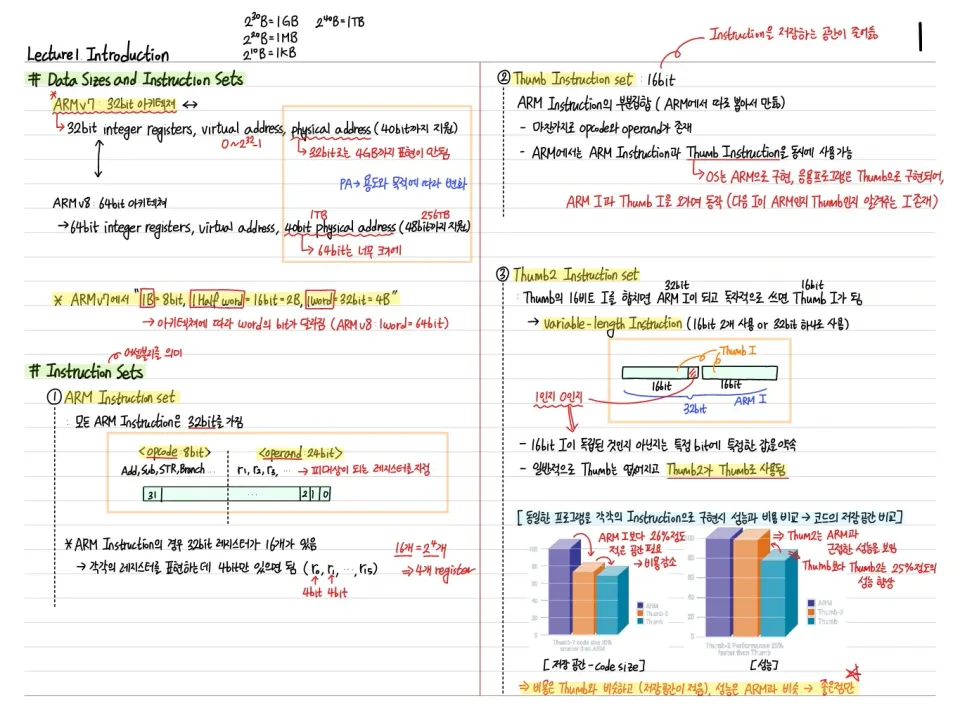
ARM vs x86
- Broadcom BCM2711 SoC: ARM architecture (ARM v7/v8)
- CISC architecture (Complex Instruction Set Computer): high performance
- A single instruction can do a lot of work (multi-cycle)
- Intel, AMD, the x86 family
- RISC architecture (Reduced Instruction Set Computer): low power
- Simple instructions, better pipeline efficiency
- ARM, ARM v7, ARM v8
→ The Raspberry Pi uses the ARM Cortex-A family → RISC-based.
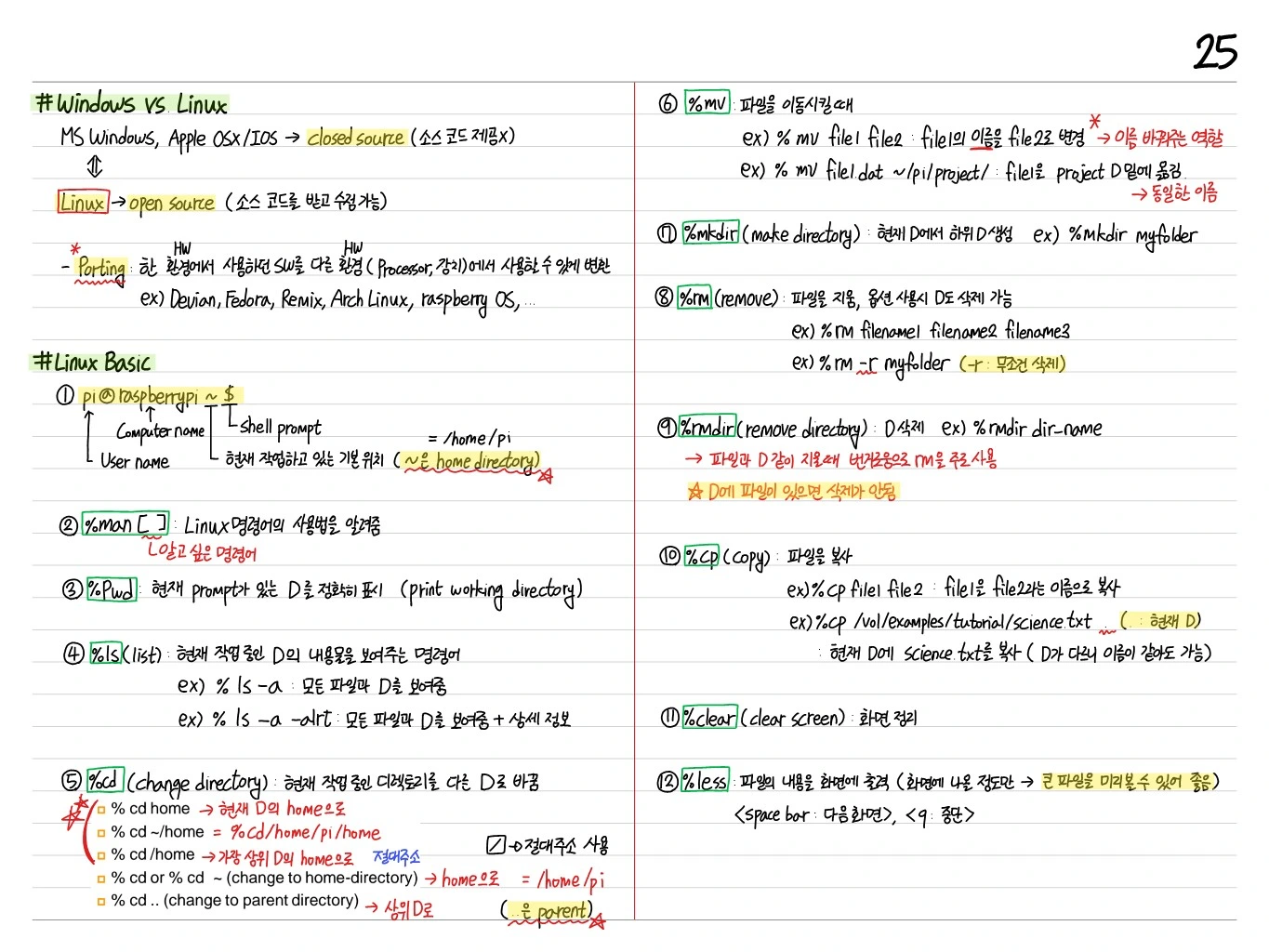
Windows vs Linux
- Windows: MS Windows, Apple macOS → closed source
- Linux (Raspbian, etc.): based on the Linux kernel, open source
- Major distros such as Rasbian, Ubuntu Mate, Arch Linux, and Kali Linux
Linux Basics: Shell Commands
Prompt
pi@raspberry:~ $pi: usernameraspberry: hostname~: current directory (home directory)$: user mode (#for root)
Key Commands
pwd: (print working directory) shows the current directoryls: list, the files and folders in the current directorycd: change directorycd /etc: absolute pathcd ~: homecd ..: parent directorycd -: previous directory
mkdir: make directory, creates an empty folderrmdir: remove directory, deletes an empty folderrm: deletes files or directoriesrm -r(recursive)rm -f(force, no prompt)
cp: copymv: move/renameclear: clear screen (Ctrl+L)
Linux Basics: File Commands
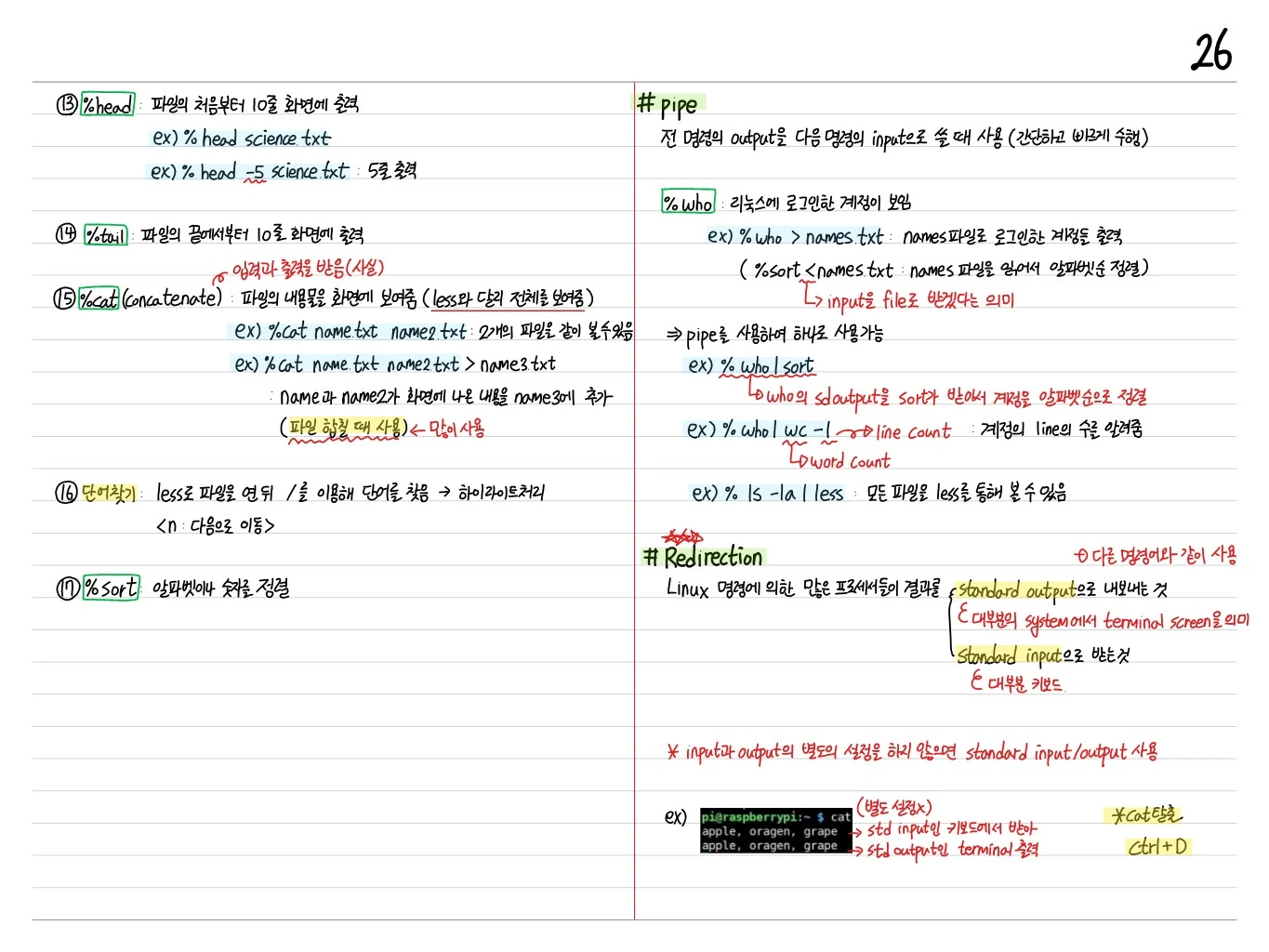
head: prints the first 10 lines of a file.head -5 science.txtprints 5 linestail: prints the last 10 lines of a filecat(concatenate): shows the contents of a filecat name.txt/cat name1.txt name2.txt(view two files joined)cat name.txt name2.txt > name3.txt: writes into name3 (used to merge files)
less: after opening a file, search for a word with/→ matches are highlighted.njumps to the next onesort: sorts alphabetically or numerically
Pipe
Used to feed the output of one command into the input of the next (simple and fast).
who: shows the accounts logged in to Linuxwho > names.txt: writes the logged-in accounts to the names filesort < names.txt: reads the names file and sorts it alphabetically (meaning the input comes from a file)
⇒ A pipe lets you do this in one step
who | sort: sort takes who's stdout and sorts the accounts alphabeticallywho | wc -l: tells you the number of account linesls -la | less: lets you browse all files through less
Redirection
The results of many processes run by Linux commands are:
- Sent to standard output (on most systems, the terminal screen)
- Read from standard input (usually the keyboard)
→ Unless input and output are set explicitly, standard input/output is used.
Example: end cat with Ctrl+D.
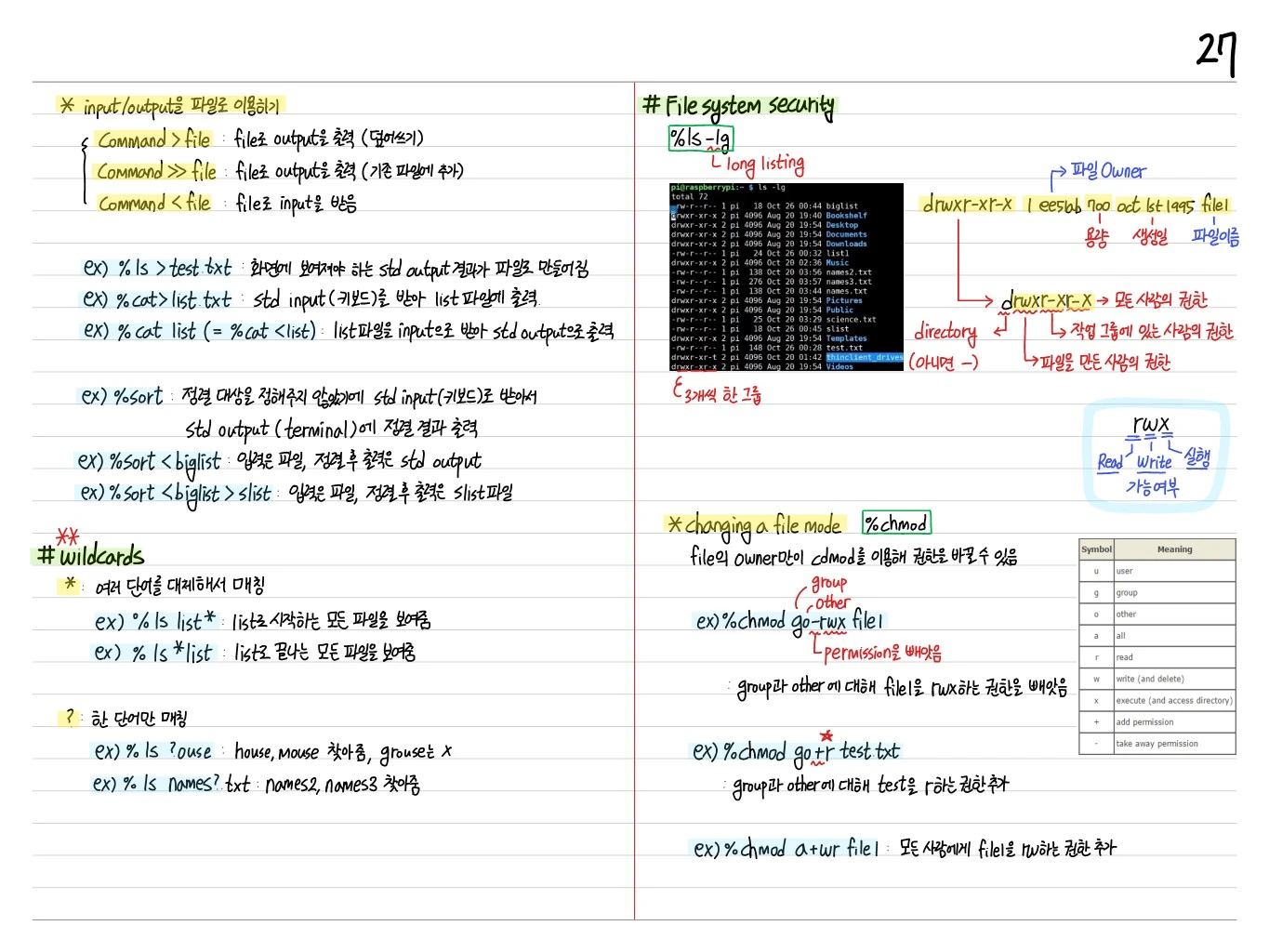
Wildcard
When passing file names as command arguments, you can use pattern matching:
*: zero or more characters?: one character[abc]: a or b or c[!abc]: anything other than a, b, c
File System Security
chmod / Permissions
Unix file permissions are rwx (read, write, execute) for owner, group, and other.
-rwxr-xr-- 1 pi pi 1234 ...
 │└┬┘└┬┘└┬┘
 │ │  │  └ other permissions (r--)
 │ │  └── group permissions (r-x)
 │ └───── owner permissions (rwx)
 └─ file type (- = regular file, d = directory)
chmod Numeric Mode
- 4: read (r)
- 2: write (w)
- 1: execute (x)
- 7 = rwx
Example: chmod 755 file → owner=rwx, group=rx, other=rx.
Changing a File's Mode
chmod(change mode)chown(change owner)chgrp(change group)
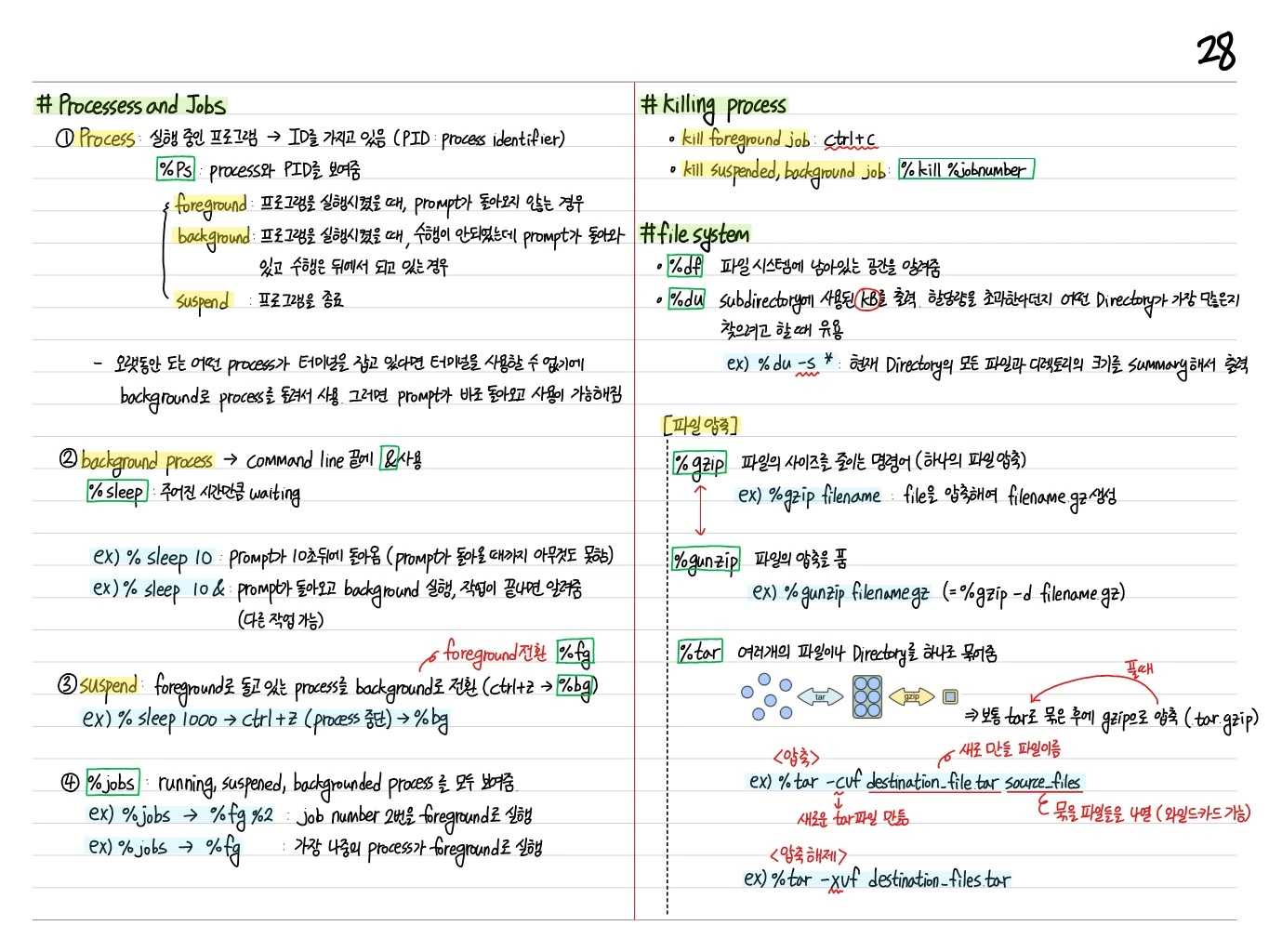
Processes and Jobs
Processes
- Foreground: the process currently running and receiving user input (it holds the prompt)
- Background: started with
&; returns the prompt and keeps running in the background - Suspended: paused (Ctrl+Z)
Job Commands
&: append&to a command to run it in the backgroundps: list of currently running processesjobs: list of current background/suspended jobsfg %n: bring job n to the foregroundbg %n: send job n to the backgroundkill %n/kill PID: terminate a job/process
Signals
Ctrl+C: SIGINT (interrupt), terminates the foreground processCtrl+Z: SIGTSTP (suspend)
Killing a Process
kill PID: SIGTERM (requests a normal shutdown)kill -9 PID: SIGKILL (forced kill)
File System Types
- ext2: the basic Linux filesystem
- ext3/ext4: journaling support, the modern standard
- NTFS: Windows native
- FAT32/exFAT: compatibility, USB
- btrfs, xfs: advanced features
File Types
- Regular file
- Directory
- Symbolic link
- Block/character device
- Socket / pipe
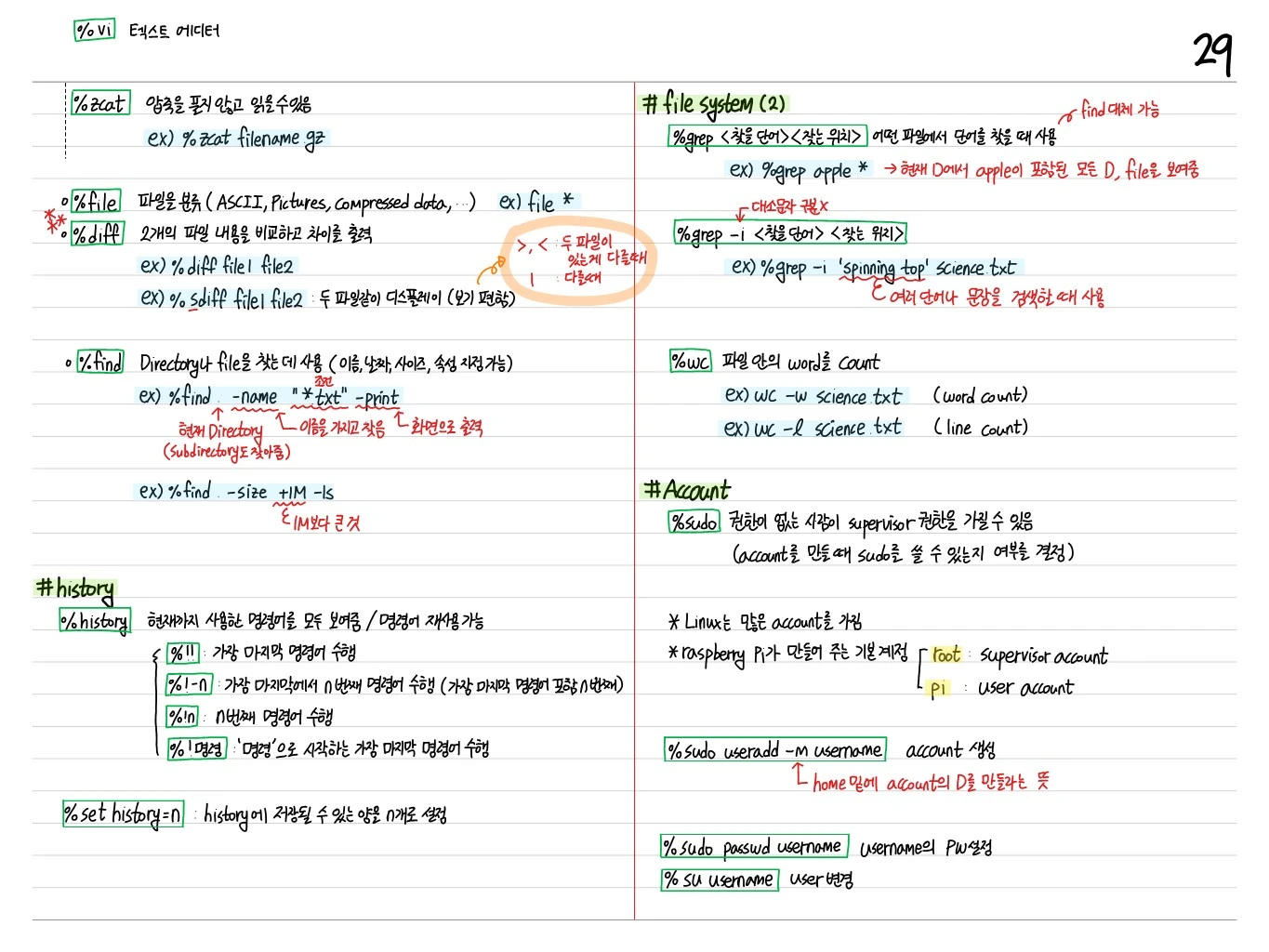
sudo Privileges
sudo: temporarily gain superuser privilegessu: switch user- sudo privileges are managed through the
/etc/sudoersfile
Account
/etc/passwd: user information/etc/shadow: password hashes/etc/group: group information
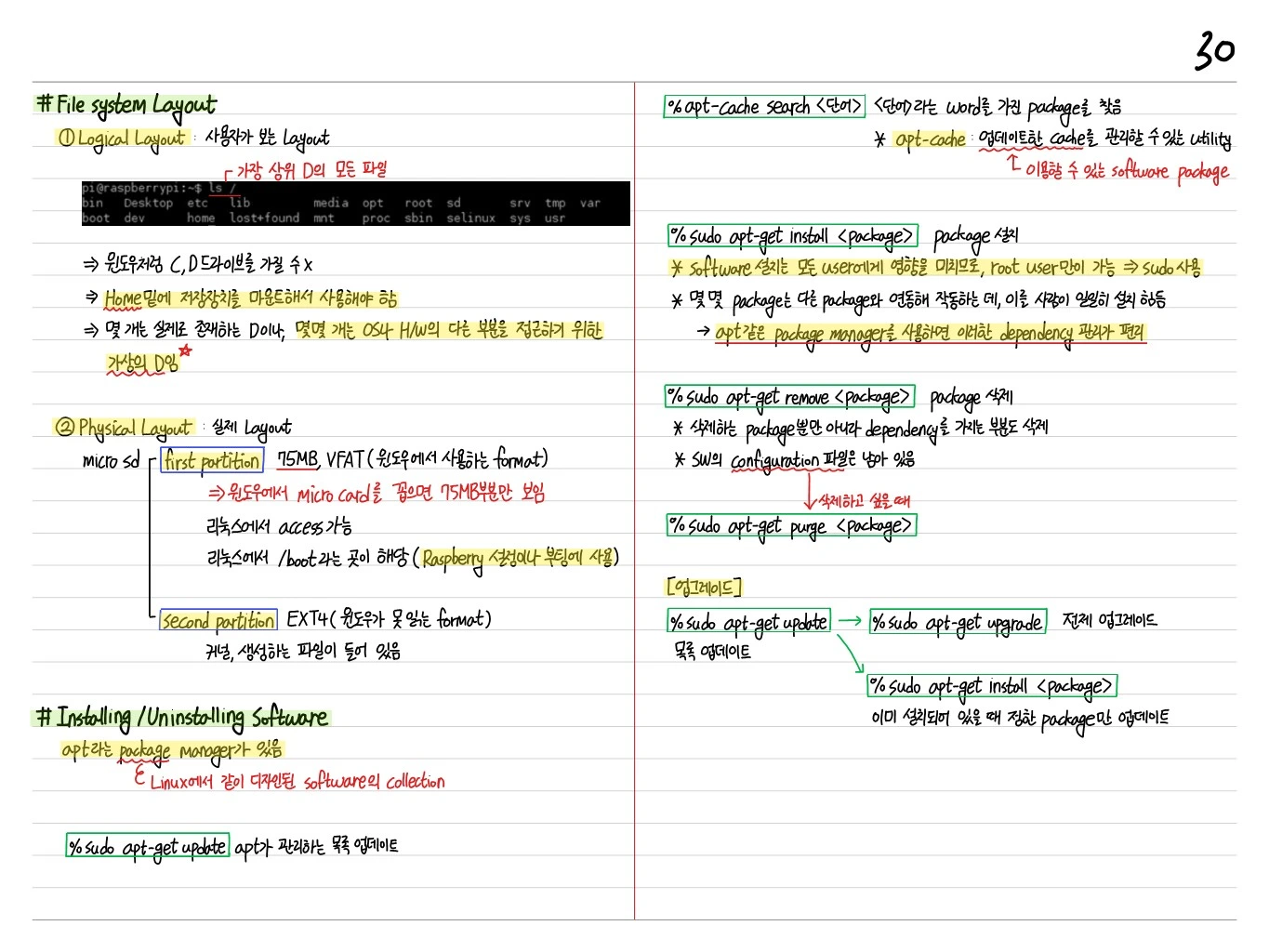
File System Layout
Logical Layout
/: root/home/<username>: user home directory/etc: configuration files/var: logs, variable data/usr: applications, libraries/bin,/sbin: essential executables/dev: device files/proc,/sys: virtual filesystems (kernel information)/mnt,/media: mount points
Physical Layout
- Boot partition: FAT, kernel image, boot loader → required on the Raspberry Pi
- Root partition: ext4 (most system files)
- Swap partition: swap area (auxiliary memory)
Installing/Uninstalling Software
The Raspberry Pi package manager: apt (Advanced Package Tool).
apt-get install <package>: installapt-get update: update the package listapt-get upgrade: upgrade installed packagesapt-get remove <package>: uninstallapt-get purge <package>: remove including configuration filesdpkg -i <file>.deb: install a local .deb file